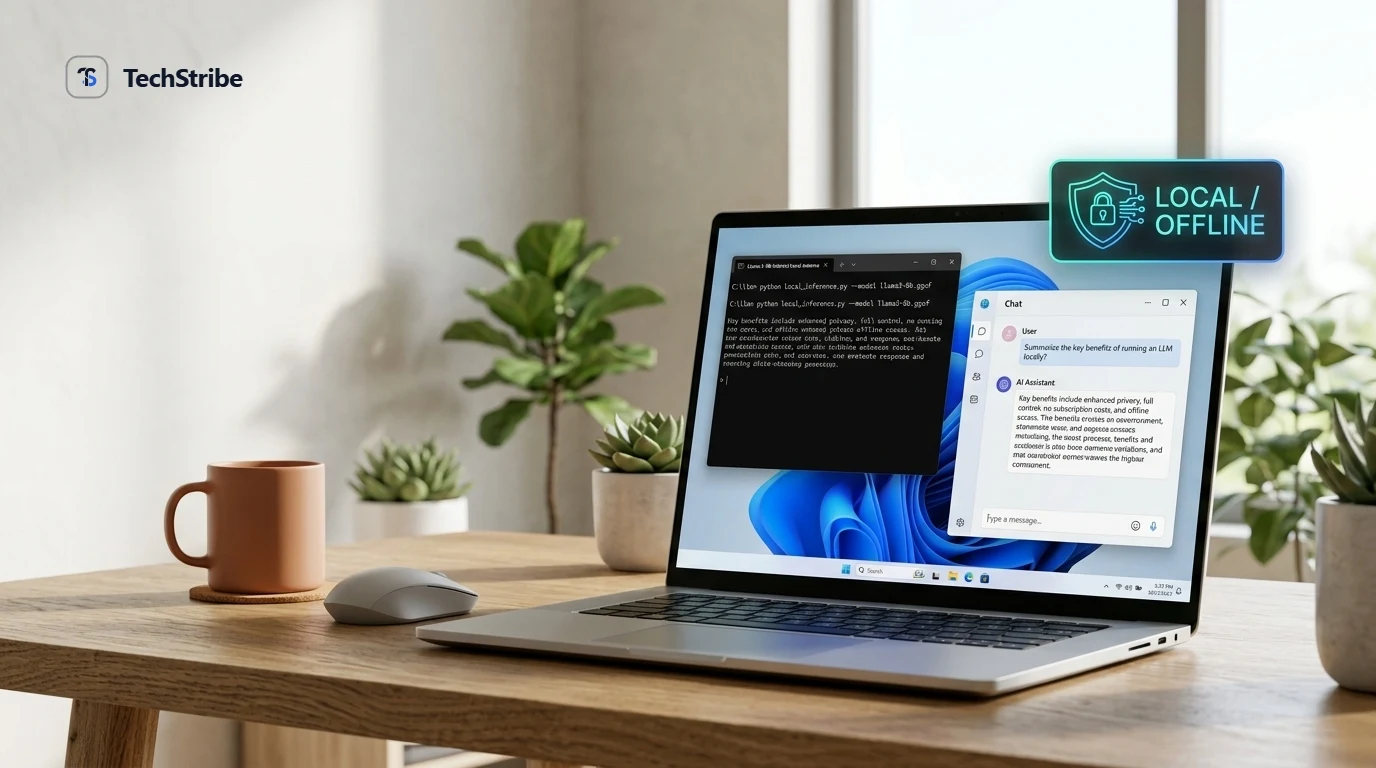
You do not need an account, a paid monthly subscription, or an expensive cloud server to chat with an advanced AI model. On modern Windows, the entire process now comes down to one installer, one model, and one line of text.
Ten to twenty minutes from now, depending on your internet connection speed, you can have a private AI assistant chatting and coding directly on your machine. This guide walks you through both methods: Ollama for developers who want a fast, scriptable command line, and LM Studio for anyone who prefers a clean, visual desktop application.
The Quick Answer: 4 Steps to Local AI on Windows
Check Specs
Check your system RAM and dedicated GPU VRAM.
Install Tool
Install Ollama (terminal) or LM Studio (visual app).
Download Model
Pull an open-weight model sized for your memory.
Start Chatting
Ask questions with zero latency and 100% offline privacy.
What You Need Before Starting
Modern local models are optimized to run on standard consumer computers, but knowing your hardware limits prevents system freezing and slow generation:
| Component | Requirement & Recommendation |
|---|---|
| Operating System | Windows 10 (22H2 or newer) or Windows 11. LM Studio also supports ARM64 builds for Qualcomm Snapdragon X Elite PCs. |
| System RAM | 16 GB recommended for a comfortable experience. Smaller 3B models run on 8 GB RAM with modest context limits. |
| Graphics Card (GPU) | Optional, but delivers 5x to 10x faster replies. NVIDIA GeForce (RTX 3000/4000 series with 6 GB+ VRAM) or AMD Radeon GPUs are fully supported. |
| Processor (CPU) | x64 CPUs require AVX2 instruction support (present on virtually all Intel Core and AMD Ryzen CPUs manufactured since 2014). |
| Free Storage | At least 15 GB to 30 GB of free SSD space. Quantized models range from 2 GB (3B model) up to 20 GB+ (32B model). |
| Internet Access | Required once during initial installation and model download. Fully offline thereafter. |
How to check your PC hardware in 30 seconds:
Press Ctrl + Shift + Esc to open Windows Task Manager, then click the Performance tab. Click Memory to see your total RAM, and scroll down to GPU to check your dedicated GPU Memory (VRAM).
Choose Your Tool: Ollama vs LM Studio
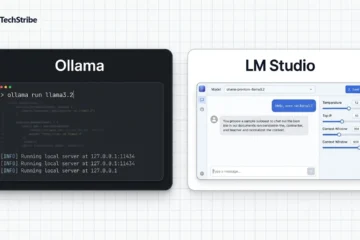
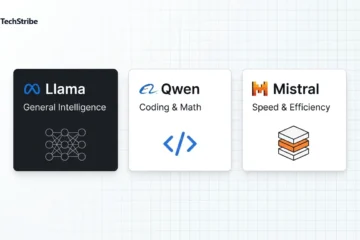
Both applications run the exact same open-weight models (Llama 3, Qwen 2.5, Mistral, Gemma 2) using llama.cpp under the hood. The difference is how you interact with them:
| Feature | Ollama | LM Studio |
|---|---|---|
| User Interface | Command-line terminal and background service | Visual desktop application with chat and model browser |
| Best Suited For | Developers, automation, and terminal users | Beginners who want buttons, sliders, and visual clicks |
| Model Discovery | Download by model name via one CLI command | Search, compare, and filter models inside the app |
| Local API Server | Always-on background API (localhost:11434) |
One-click OpenAI-compatible server (localhost:1234) |
| License | 100% Open Source (MIT License) | Free for personal & work; proprietary core |
Tip: Start with LM Studio if you prefer a graphical window, or Ollama if you prefer the terminal. You can install both on the same Windows PC without conflicts.
Method 1: Run an LLM with Ollama on Windows
Ollama is the fastest way to get started if you want a lightweight service that runs in the background:
- Download the Windows Installer: Grab the installer from the official Ollama website (
OllamaSetup.exe). - Run the Setup: Double-click the installer. It does not require administrative privileges and installs cleanly to your local user directory.
- Open Windows Terminal: Press the Windows key, search for PowerShell or Command Prompt, and launch it.
- Download and Run a Model: Type the following command and hit Enter. Ollama will download the model weights and launch an interactive chat immediately:
ollama run llama3.2 - Chat with your Model: Type your prompt and press Enter. When you are finished, type
/byeto exit the chat session.
Essential Ollama Terminal Commands
| Command | Function |
|---|---|
| ollama list | Shows all AI models downloaded on your computer. |
| ollama pull <model> | Downloads a model without launching an interactive chat session. |
| ollama ps | Displays which model is currently loaded in GPU VRAM or system RAM. |
| ollama rm <model> | Deletes a downloaded model to free up hard drive storage. |
Ollama runs quietly in the Windows system tray. Model files are stored by default in C:Users<YourUser>.ollamamodels. If your primary C: drive is running low on space, you can set the OLLAMA_MODELS environment variable to any secondary drive.
Method 2: Run an LLM with LM Studio on Windows
LM Studio provides a complete, modern graphical interface with built-in model search, hardware utilization graphs, and customizable prompt settings:
- Download LM Studio: Download the Windows version from the LM Studio website. (If using an ARM-based laptop with Snapdragon X Elite, choose the ARM build).
- Install and Launch: Follow the on-screen installer prompts and open LM Studio.
- Discover and Choose a Model: Click the magnifying glass Discover icon in the left sidebar. Type a model family like Qwen 2.5 or Llama 3.1. LM Studio displays file sizes and compatibility badges for your exact RAM.
- Download the Model: Select your preferred quantization (e.g., Q4_K_M for the ideal quality-to-speed balance) and click Download.
- Load and Chat: Switch to the Chat tab, select your downloaded model from the top dropdown, and start chatting.
Connecting External Apps via Local API
LM Studio includes a built-in Local Developer Server. By toggling the server switch on in the Developer tab, LM Studio exposes a standard OpenAI-compatible API endpoint (http://localhost:1234/v1). You can connect coding tools like Cursor, Continue.dev, or local Python scripts directly to your offline model.
Which Model Should You Download First?
Picking a model that fits comfortably in your hardware memory is the single most important factor for good performance:
| Your System RAM | Recommended Model Size | Top Recommendations |
|---|---|---|
| 8 GB RAM | Small models (1B to 3.8B parameters) | Llama 3.2 3B, Phi-3.5 Mini, or Qwen 2.5 3B. Leaves plenty of memory for Windows and open browser tabs. |
| 16 GB RAM | Mid-tier models (7B to 8B parameters) | Llama 3.1 8B or Qwen 2.5 7B. The consumer sweet spot for general reasoning, writing, and coding assistance. |
| 32 GB+ RAM | High-tier models (14B to 32B parameters) | Qwen 2.5 14B / 32B or DeepSeek-R1 Distill 14B. Approaches cloud-tier reasoning and sophisticated code generation. |
Golden Rule: When in doubt, start small. A 3B or 8B model running at 35 tokens per second feels much better than a 32B model that crawls at 2 tokens per second and freezes your PC.
Troubleshooting Common Windows Issues
| Symptom | Recommended Fix |
|---|---|
| Computer freezes or runs out of RAM | Switch to a smaller model (e.g., from 8B down to 3B), lower the active context window in settings, and close heavy background apps like Chrome or games. |
| Responses generate very slowly | The model is likely overflowing into system RAM because your GPU VRAM is full. Choose a more compact quantized version (Q4 instead of Q8) or a smaller parameter count. |
| GPU is not being utilized | Update your NVIDIA or AMD graphics drivers. Ollama requires a compatible CUDA or ROCm driver to offload computation to GPU cores. |
| “ollama” is not recognized in terminal | Close and reopen your PowerShell or Command Prompt window so Windows refreshes its system PATH environment variables. |
| LM Studio will not launch | Verify your CPU supports AVX2 instructions. Older processors without AVX2 cannot run modern quantized llama.cpp binaries. |
Best Practices for Privacy and Security
- Download from verified sources: Only download models from recognized creators (Meta, Alibaba, Mistral, Microsoft, or trusted quantizers like TheBloke and Bartowski).
- Check model licenses: If you plan to use outputs for commercial business, confirm the model license (e.g., Apache 2.0, MIT, or Llama 3.1 Community License).
- Keep local servers local: If you enable the API server in Ollama or LM Studio, ensure it binds to
127.0.0.1(localhost) and is never exposed directly to the public internet without an encrypted reverse proxy and authentication.
Frequently Asked Questions
Can I run local AI models on Windows without a dedicated GPU?
Yes. Compact models (1B to 3.8B parameters) execute smoothly on standard Intel and AMD CPUs using system RAM. Responses generate slightly slower than on a dedicated GPU, but remain fully interactive and practical for daily drafting and chat.
Do local models require an active internet connection?
No. You only need internet connectivity once to download the installer and model files. After download, you can completely disconnect from Wi-Fi or enable Airplane Mode, and the model will execute 100% offline.
What is the easiest way to run local LLMs for complete beginners?
LM Studio is generally the easiest option for newcomers because it features a visual interface, built-in search with compatibility warnings, and a standard chat window with no terminal typing required.
How much hard drive space do I need?
At standard 4-bit quantization, a 3B model needs ~2 GB, an 8B model takes ~4.7 GB to 5.5 GB, a 14B model takes ~9 GB, and a 32B model takes ~20 GB. SSD storage is strongly recommended over traditional spinning HDDs for fast model loading.
Is Ollama or LM Studio better for Windows?
Neither is universally better. Choose Ollama if you prefer a command-line terminal, scripting, or connecting models to developer tools like Cursor and Docker. Choose LM Studio if you prefer a polished visual app with chat controls and easy model exploration.